VISLIZ / Guides · Updated 2026-10-16
How to turn CSV into a chart
Load CSV data into a template, set titles, units and sources, then save, export or publish your chart.
This workflow uses the same NOAA/Scripps Mauna Loa annual CO₂ dataset throughout: 25 observations from 2000 to 2024. Import the data, add an annotation, save your chart, then export or publish it. The CSV keeps the source fields Year and CO2 ppm.
Open the tutorial’s line chart templateDownload the complete CSV
1. Open the template and import the CSV
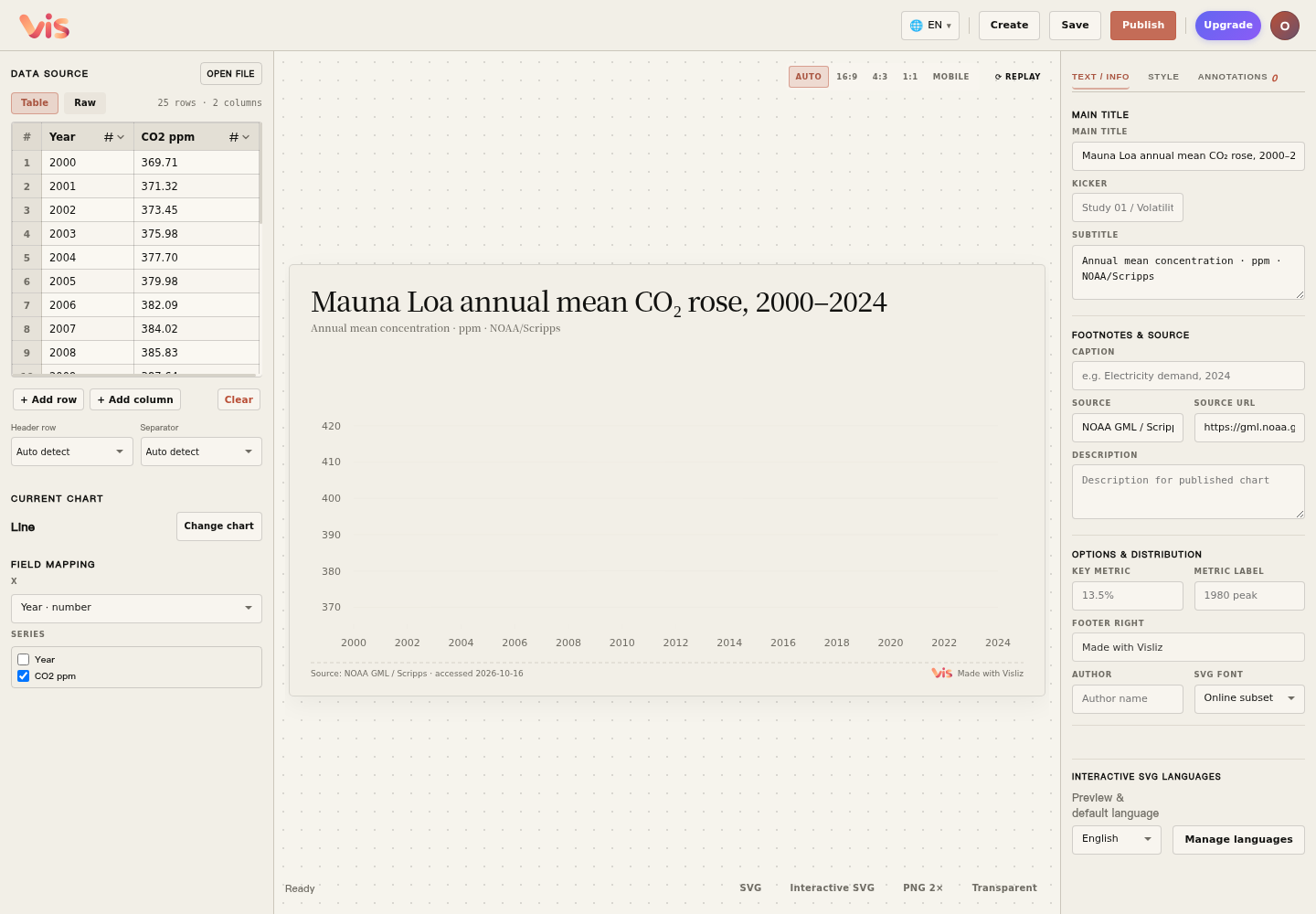
Sign in and open the template above. Under Data source, choose Open file and select research-co2.csv. You can also switch to Raw data and paste the complete CSV. Use the Header and Delimiter controls to review how the table is read.
2. Check the fields and observations
The table has 25 rows and two columns. Use Year for X and CO2 ppm as the series. The first value is 369.71 in 2000 and the last is 424.61 in 2024. Keep the dates ordered and the ppm unit consistent. When replacing the sample, check how zero and missing values should be interpreted.
3. Add a title and source
In Text / Info, enter a title, subtitle and source. For this example, use “Mauna Loa annual mean CO₂ rose, 2000–2024” and retain the NOAA/Scripps source. Importing data updates the preview; use Save to store the chart in the cloud.
If columns or values look wrong
Check the delimiter and header detection first. Thousands separators need proper CSV quoting; percentage values should use a consistent representation. Compare the first and last rows and any missing observations with the original table.