VISLIZ / Guides · Updated 2026-10-16
How to publish and embed an interactive chart
Publish a chart and copy its public link or iframe to embed it in a blog or website.
Publish the CO₂ chart to get a public link and iframe for a compatible website. Publishing makes the chart and data included in the file accessible for viewing, downloading and sharing.
1. Confirm the chart and public content
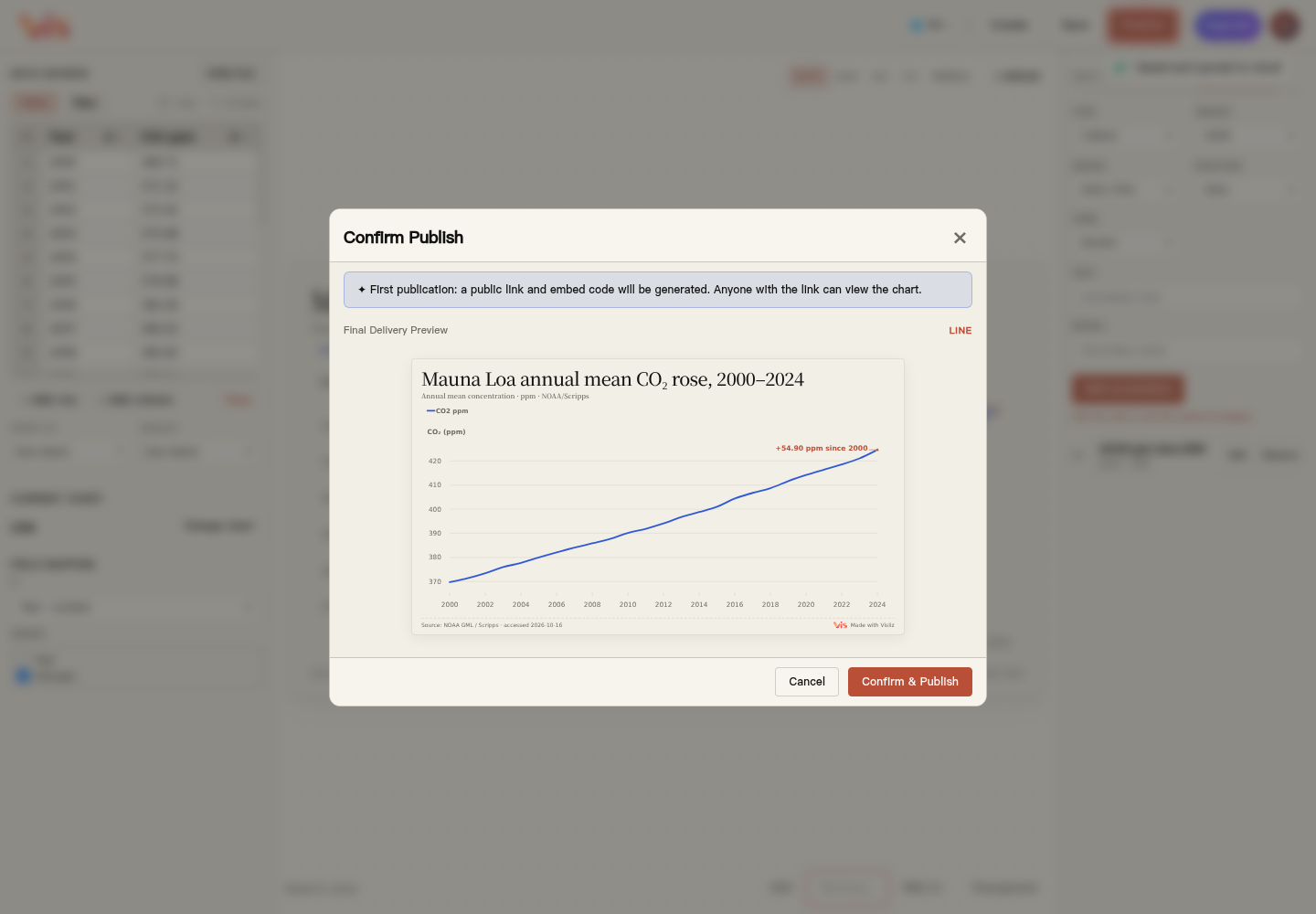
Choose Publish at the top. Review the chart and publication notice in Confirm Publish, then choose Confirm & Publish. Remove confidential data before making the chart public.
2. Copy the public link or iframe
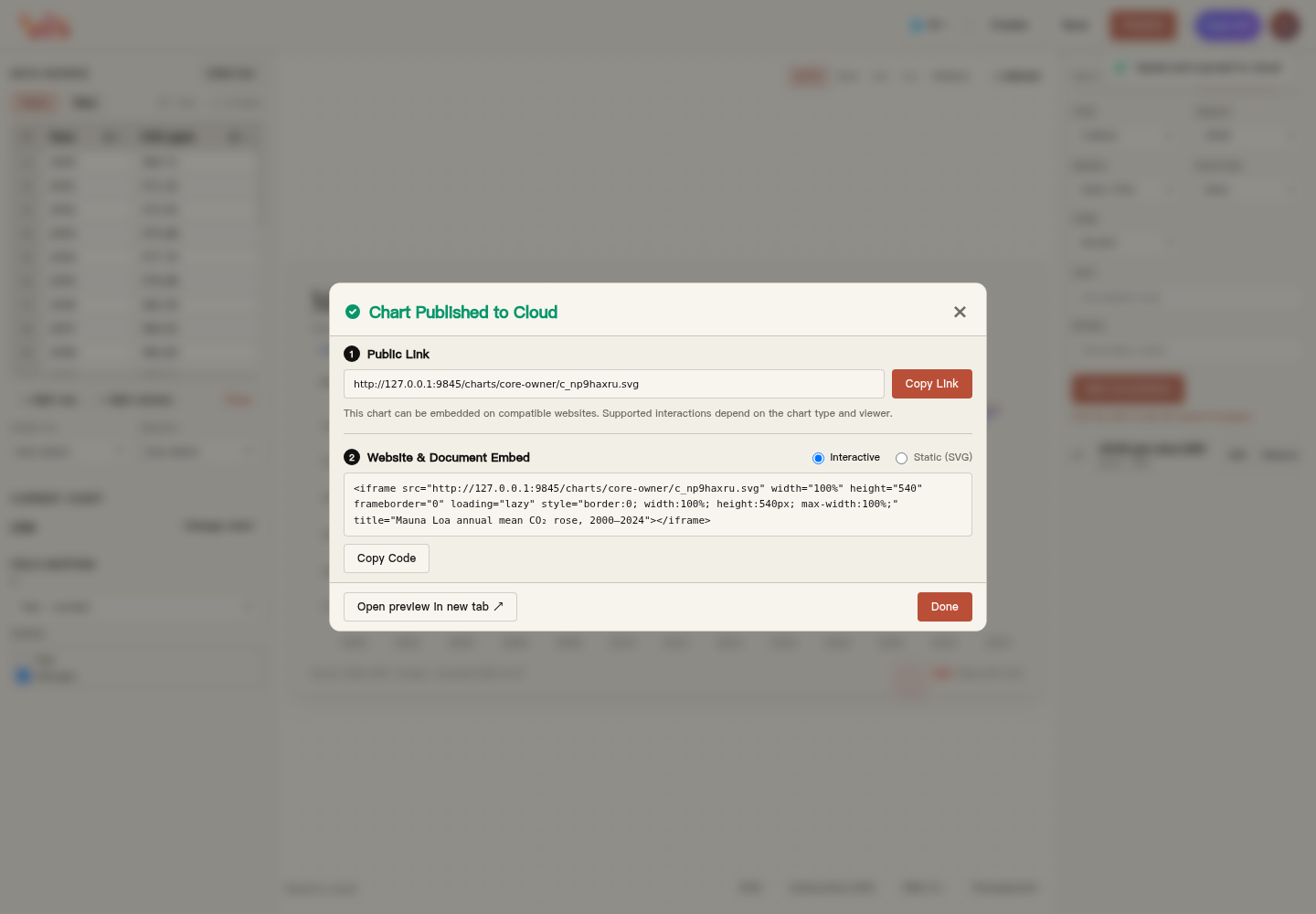
After publication, choose Copy Link under Public Image Link. For a website, choose Interactive under Website & Document Embed, then Copy Code. Use the address generated for your own chart; the screenshot address is an example.
3. Add the iframe to your website
Paste the iframe into a supported HTML or embed block, keeping a usable width and height. Preview it on desktop and mobile. Some blog editors, email clients and document tools filter iframes; use a link or image where required.
4. Update the published chart
Reopen the original chart from Editor, edit it and publish it again. Existing public links remain usable; browser or delivery caches may delay visible updates. Open the original link to review the updated result.